Properties are the heart of Roblox development—one of the “three pillars” of Objects (alongside Methods and Events). Simply put: every Property has a name (what it controls) and a value (its current state). Change the value, and you instantly alter your game’s behavior or visuals. No coding required for basics!
This guide teaches you to master Properties via Roblox Studio and the official API Documentation. We’ll use real examples like making floating platforms or invisible walls—perfect for Obby games. Updated for 2026, including tips on value types and common pitfalls.
Properties Explained: Name + Value = Power
Analogy: Think of your smartphone as an Object. Properties include:
- Model: iPhone 15 (name) = “iPhone 15” (value)
- Color: Gold
- Storage: 128GB
- Battery Health: 85%
In Roblox, a Part (basic building block) has Properties like Color (sets hue), Size (dimensions), and Position (location). Edit them in the Properties panel (dock right in Studio), and watch changes live!
| Property Name | Example Value | Effect |
|---|---|---|
| Color | Gray (default) | Part appears gray |
| Size | Vector3(4, 1, 4) | Part scales to those dimensions |
| Position | Vector3(0, 10, 0) | Part moves to world coordinates |
The 4 Value Types You’ll Use Constantly
Properties demand specific value types—”put the right thing in the right place!” Here’s a beginner breakdown:
| Type | Description | Examples |
|---|---|---|
| Lua Natives | Basic programming data | true/false (boolean), 5 (number), "Hello" (string), nil |
| Roblox Datatypes | Roblox-specific | Vector3(0,5,0) (position), Color3(1,0,0) (red) |
| Enums | Predefined options | Enum.Material.Neon (glowing), Enum.PartType.Ball |
| Objects | References to other Objects | workspace.Baseplate (links to another Part) |
Don’t memorize—API Docs reveal the exact type!
Editing Properties in Roblox Studio
- Open a new Baseplate experience.
- Explorer (left): Right-click Workspace > Insert Object > Part.
- Select the Part—Properties (right) lists them all.
- Tweak live: Use Home tab tools (Scale changes
Size), or edit directly (dropdown for Color).
Pro Tip: Search Properties panel (top magnifying glass) for quick finds.
Level Up: Reading API Documentation
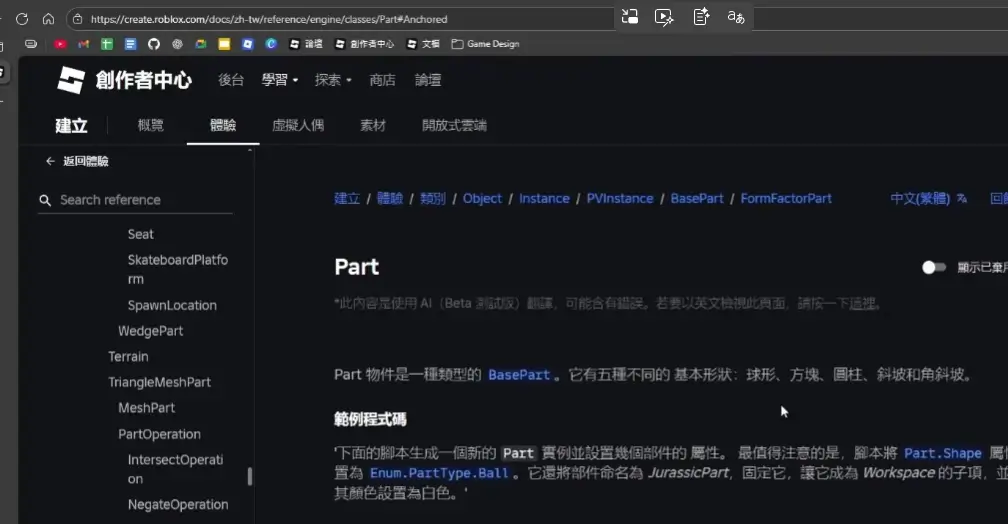
Guessing from names works for basics (Color = obvious!), but pros use API Docs:
- Right-click Object in Explorer > Help → Opens
create.roblox.com/docs/reference/engine/classes/[ObjectName]. - Summary tab > Properties section: Lists all (including inherited).
- Each: Name + Type + Description.
- Ctrl+F to search (e.g., “Anchored”).
- Click type for details (e.g., “boolean” → true/false).
- Switch to English (top-right) for precise info—AI translations improving but spotty.
- Expand inherited sections if hidden.
Golden Rule: Match the type! Wrong value = errors or glitches.
Hands-On Practice: 3 Essential Part Properties
Create a Part in Workspace. Right-click > Help (Part API). Follow along:
1. Anchored (Boolean)
- Search: Ctrl+F “Anchored”.
- Description: Determines if immovable by physics.
true= ignores gravity/collisions (floating platforms!). - In Properties: Checkbox → On (
true): Part hovers. Off: Falls! - Obby Use: Floating blocks.
Script Example (for later):
part.Anchored = true -- Fixed in place2. CanCollide (Boolean)
- Search: “CanCollide”.
- Description: Enables physical collisions.
false= pass-through (ghost walls!). - In Properties: Checkbox → Off: Walk through it.
- Obby Use: “No-step” floors.
- Pitfall: Anchored=false + CanCollide=false = Part falls into void!
3. Transparency (Number, 0-1)
- Search: “Transparency”.
- Description: 0=opaque, 1=invisible. 0.5=half-transparent.
- In Properties: Slider/input → 1: Vanishes!
- Obby Use: + Anchored=true = invisible barriers.
Combo: Anchored=true + Transparency=1 + CanCollide=true = Unseen, unbreakable wall.
Exercise: Decode These Part Properties
Practice solo! API search each, note effect + type:
| Property | Effect | Value Type |
|---|---|---|
| BrickColor | Sets part color via preset palette (overridden by Color/Material). Legacy but useful. | BrickColor |
| CastShadow | If part casts shadows (performance tweak—avoid disabling casually). | boolean |
| Mass | Read-only calculated mass (density × volume). Affects physics inertia. | number |
Answers verified via API—test in Studio!
Pro Tips for API Mastery (2026)
- AI Help: Studio Assistant or ChatGPT: “Explain Roblox Part.Anchored property with Obby example.”
- Search Tricks: Ctrl+F relentlessly. Refresh page if links fail.
- Inheritance: Properties from BasePart/Object show under “Inherited.”
- Part vs. BasePart: Part adds
Shape(Enum: Block/Ball/etc.). All inherit physics goodies.
Quick Review
- Properties = Name (intuitive) + Value (match type!).
- Studio: Explorer select → Properties edit.
- API: Right-click Help → Summary > Properties → Ctrl+F.
- Right type = no bugs.
Next: Methods/Events for dynamic magic. Fire up Studio—build that killer Obby! Questions? DevForum or Assistant. Links: BasePart API, Part API.