Struggling with English-heavy Roblox API docs? No problem—leverage AI like ChatGPT or Studio’s Assistant to decode them effortlessly. This guide spotlights three powerful Objects you can use without scripting: Model (grouping), Decal (textures), and SelectionBox (highlights). Build complex scenes, decorations, and effects in minutes!
Perfect for beginners crafting Obbies, roleplay worlds, or prototypes. We’ll create each in Studio, query AI for insights, and verify via official API—all updated for 2026 deprecations like Decal’s Texture.

Pro Tip: AI-Powered API Learning Prompt Template
Copy-paste this into ChatGPT/Assistant for crystal-clear explanations:
“I’m a beginner using Roblox Studio (Luau engine). Explain the [ObjectName] class: what it does, key properties/methods/events, required value types, and a simple example for [use case, e.g., ‘grouping house parts’]. Translate confusing English to simple Chinese/English. Include code snippets if relevant.”
Right-click Object in Explorer > Help for the API page (create.roblox.com/docs/reference/engine/classes/[ObjectName]). Feed excerpts to AI!
1. Model: Group Your Builds Like LEGO
What it is: A container for 3D objects (BaseParts like Parts/Models). Player characters are Models! Ideal for organizing messy scenes (e.g., a house: roof, walls, doors).
Quick Create:
- Build with Parts (Home > Part).
- Select multiples (Ctrl+click) > Ctrl+G (or right-click > Group).
- Rename (F2): “HouseModel” – aids future scripting.
AI/API Insights:
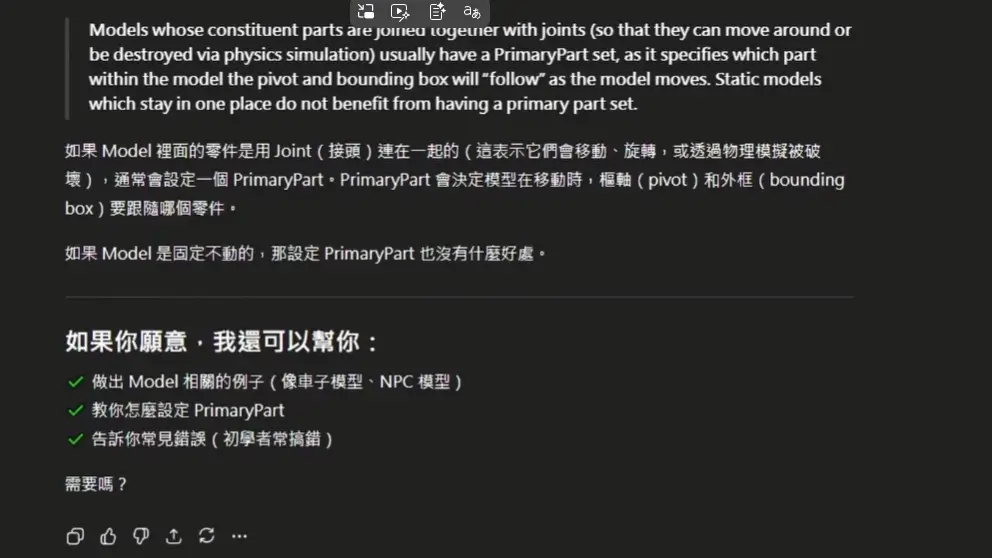
- PrimaryPart: Set a “pivot” Part for physics/positioning (e.g., house base).
- Use for tangible 3D groups. Scripts/data? Use Folder instead.
- API: Inherits Instance tools (Parent, Children).
Example: Group a car (wheels + body) → Move/rotate as one unit.
| Key Property | Type | Use |
|---|---|---|
| PrimaryPart | BasePart | Physics center |
| Name | string | Easy identification |
2. Decal: Add Images & Textures to Surfaces
What it is: Sticks an image on a Part’s face—like wallpaper or signs. Your Baseplate’s SpawnLocation already has one!
Quick Create:
- Insert Part in Workspace > Scale up.
- Part > ⊕ (Insert) > Decal (prompts Face choice).
- Texture/ColorMapContent:
- Toolbox (View > Toolbox > Creator Store > Decals): Search > Right-click > Copy Asset ID > Paste in Properties > Texture (auto-formats to
rbxassetid://ID). - Upload New: Properties > Texture > “Add Image” (from PC; moderated!).
- Face: Enum (Front/Back/Top/etc.) – 6 Part sides.
- Parent: Must be BasePart.
AI/API Insights:
- Texture deprecated (2026+): Use ColorMapContent for color/opacity maps.
- Tints via Color3.
- Scales to face size.
Example: Billboard ads, warning signs, or themed floors in Obbies.
| Key Property | Type | Use |
|---|---|---|
| ColorMapContent | Content | Image ID (rbxassetid://) |
| Face | Enum.Face | Which side |
| Parent | BasePart | Surface to stick to |
Warning: Uploads moderated—avoid violations!
3. SelectionBox: Highlight Objects with Glowing Borders
What it is: Draws a 3D outline around Parts/Models (like Studio’s blue select box). Great for UI, selectable items, or effects (e.g., Color or Die borders).
Quick Create:
- Insert Part in Workspace.
- Part > ⊕ > Search “SelectionBox”.
- Properties:
- Adornee: Set to the Part/Model (any Instance; best on BaseParts).
- Color3: Outline hue (e.g., red for danger).
- LineThickness: Width (0.1-1 recommended).
- Transparency: 0=opaque, 1=invisible lines.
AI/API Insights:
- Visible in Workspace/GUIs.
- SurfaceColor3 for filled surfaces (advanced).
Example: Pulsing borders for interactables or team zones.
| Key Property | Type | Use |
|---|---|---|
| Adornee | Instance | Object to outline |
| Color3 | Color3 | Line color |
| LineThickness | number | Border width |
| Transparency | number (0-1) | Fade effect |
Key Takeaways from AI + Practice
- Group smartly: Models for 3D; Folders for logic.
- Decorate dynamically: Decals for visuals (watch deprecations!).
- Highlight intuitively: SelectionBox for focus/effects.
- AI Caution: Great for explanations/examples, but verify API for latest (e.g., ColorMapContent). Build debugging skills first!
Exercise:
- Model a “Treasure Chest” (Parts + Decal label + SelectionBox glow).
- AI-query: “SelectionBox for glowing pickups in Obby.”
- Share your Asset IDs in comments!
Next: Scripting basics—AI assists, but master fundamentals first. AI is your tool; don’t depend on it blindly. Download Studio, experiment—your viral experience awaits! Links: Model API, Decal, SelectionBox.